
Customization
Creative Face Studio watch faces can be customized directly on your Wear OS watch.
Depending on the selected watch face, you can change colors, styles, data fields, complications, and other available options.
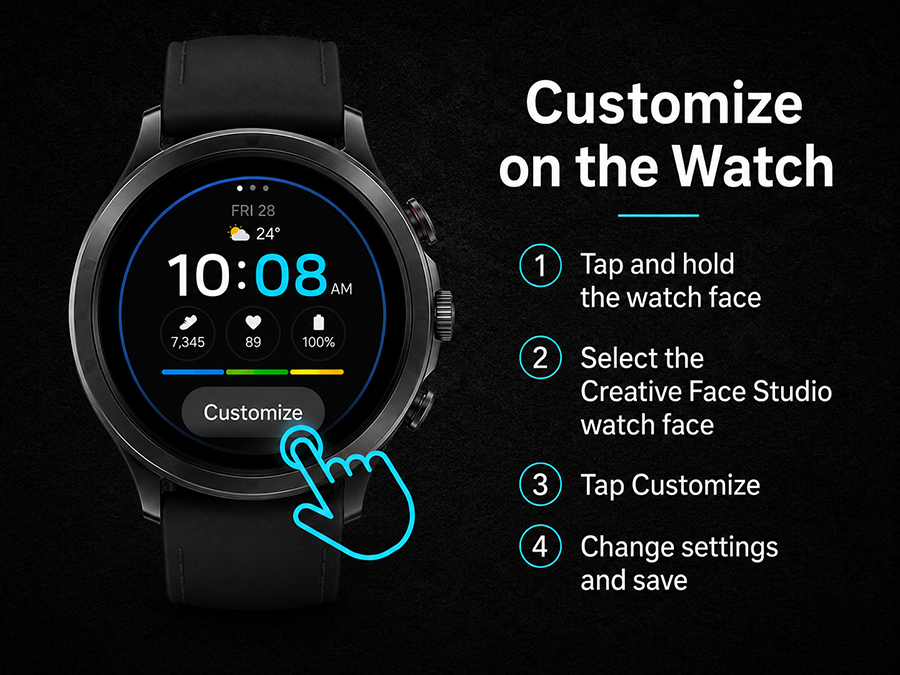
Recommended Method — Customize on the Watch
The best way to customize the watch face is directly on your watch. This method is usually faster and more reliable than using the phone app.
- Tap and hold the current watch face screen.
- Select the Creative Face Studio watch face.
- Tap Customize.
- Change the available settings.
- Press the Back or Home button to exit and save your changes.
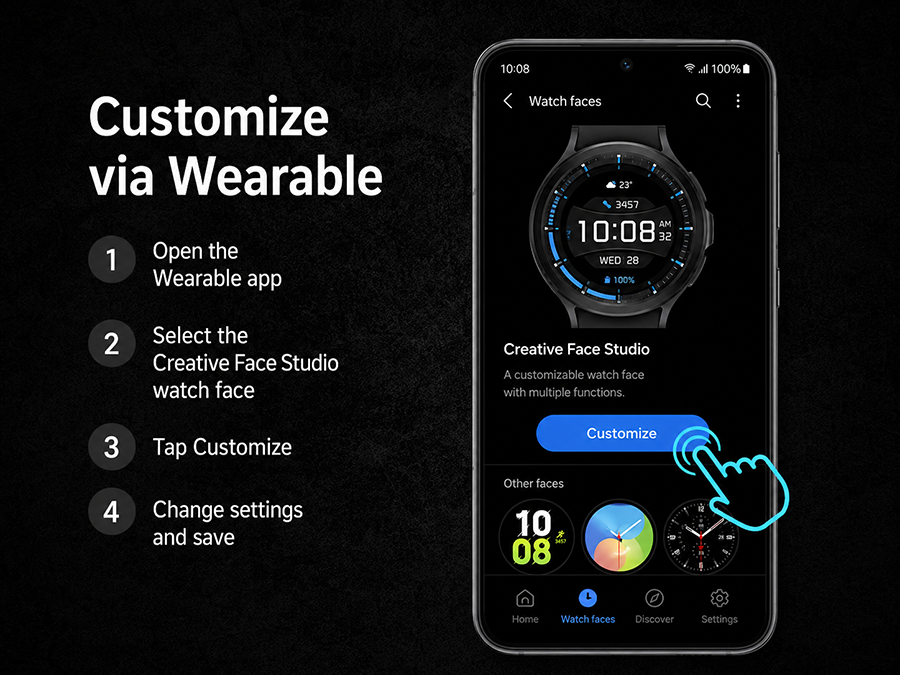
Customize via Wearable App
Some watches also allow customization through the phone app, such as Galaxy Wearable.
This method may sometimes load slowly, especially if the watch face contains many graphics, colors, and customization options.
- Open the Wearable app on your phone.
- Select the Creative Face Studio watch face.
- Tap Customize.
- Change the settings and save them.
If customization through the phone app does not open or takes too long, customize the watch face directly on the watch.
Complications and Data Fields
Some areas of the watch face may support complications. Complications are additional data fields provided by Wear OS, system apps, or third-party apps.
Depending on your watch and installed apps, complications may show:
- weather;
- heart rate;
- steps;
- calendar events;
- phone battery;
- other Wear OS data.
Please note that complications are not part of the watch face itself. They are provided by the system or third-party apps, so their availability and accuracy may depend on your watch model, permissions, installed apps, and system settings.
If Weather, Heart Rate, or Other Data Is Not Displayed
Try the following steps:
- check the permissions for the watch face;
- open the watch face customization settings and select the correct data source;
- wait a few minutes after installation;
- restart the watch;
- make sure the required app or service is installed on the watch.
If weather is not displayed, the watch may not have received updated weather data from the phone yet. In this case, switch to any other watch face, wait a few seconds, and then switch back to the Creative Face Studio watch face.
If heart rate shows 0, restarting the watch often helps.
If Changes Are Not Saved
If your customization changes are not saved, try this:
- Customize the watch face directly on the watch.
- Press the Back or Home button to exit.
- Wait a few seconds.
- Restart the watch if the changes still do not appear.
If the issue continues, it may be related to Wear OS, the phone companion app, the wearable management app, or the system cache.
Important
Customization, complications, weather, heart rate, and other data may depend on the watch model, Wear OS version, permissions, system apps, and third-party services.
The developer cannot control third-party complications, Samsung Wearable, Google Play Services, weather providers, or system sensors.
If you need help, please contact us through the Contacts page.